¶ Add whatsapp/sms plugin
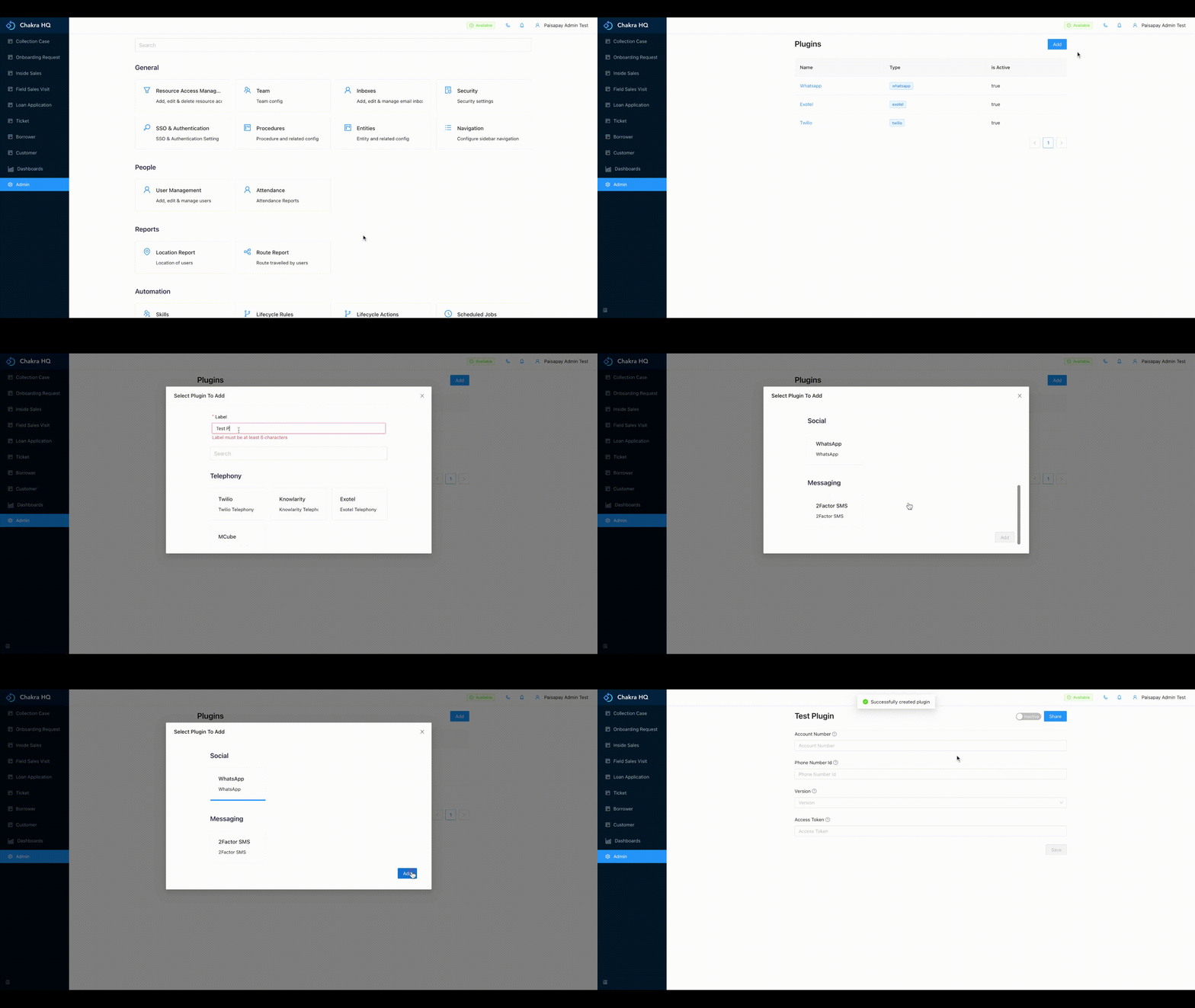
To send an automatic message to the customer as per some rules first we need to add the plugin. Adding plugin is necessary as it takes the API key through which Chakra will send the messages.
To add the plugin for SMS/Whatsapp below steps have to be followed:
- Go to Admin --> Plugins
- Click on Add, add the label and the type of plugin form the list
- Enter the required API details and save
¶ Creating Lifecycle Rule for message
The automatic messages can be sent by creating required Lifecycle Rules.
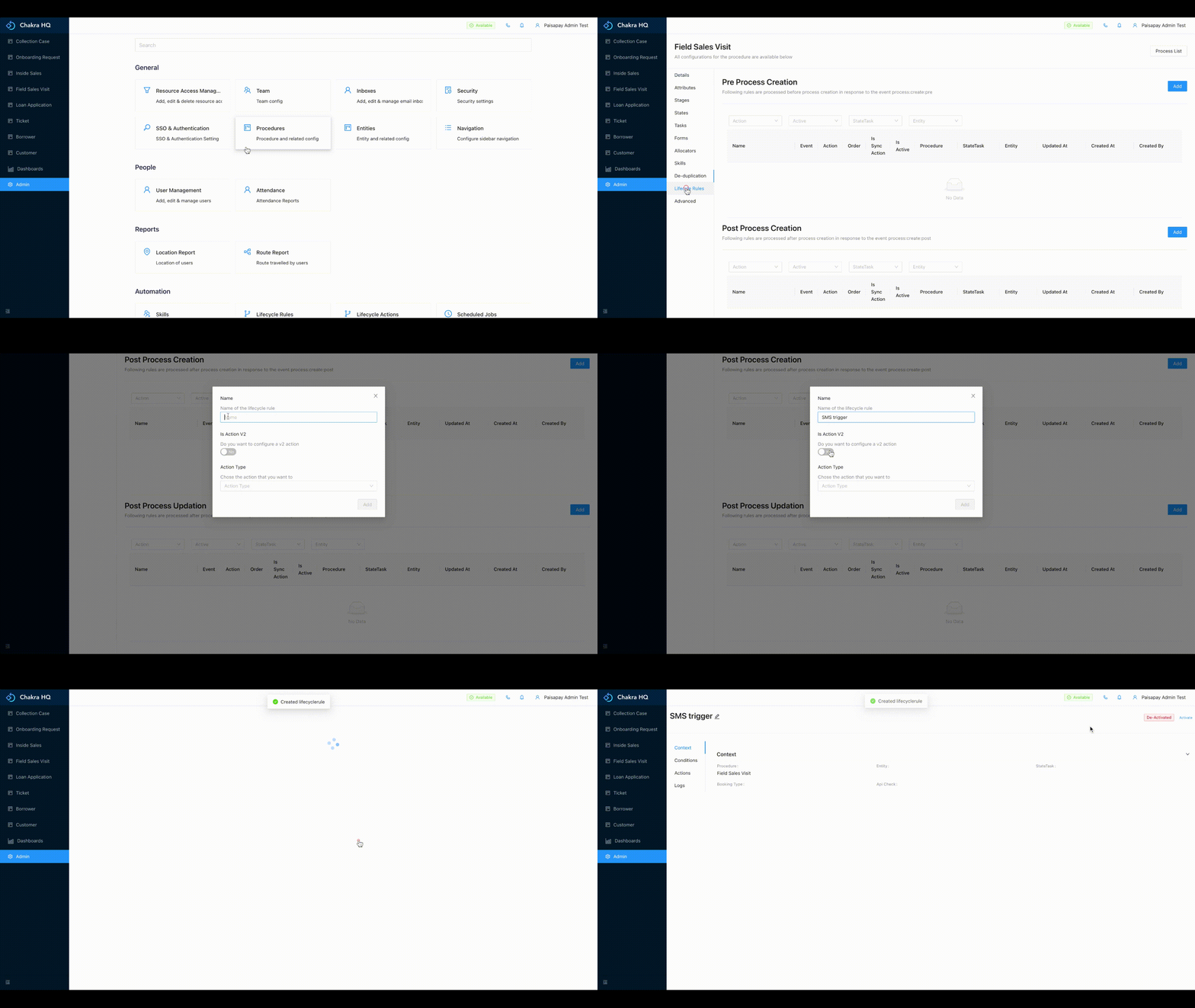
Below are the steps through which you can create a message trigger:
- Go to Admin --> Procedures and select the procedure for which you want to create the message trigger
- Go to the
Lifecycle Rulessection - We need to add a new rule under
Post Process Updationas messages will be sent post lead updation - Click on Add under
Post Process Updation. Enter the name of the lifecycle rule, select the toggle as Yes inIs Action Vand select the option process:send-message under Action Type V2
¶ Adding message conditions and actions
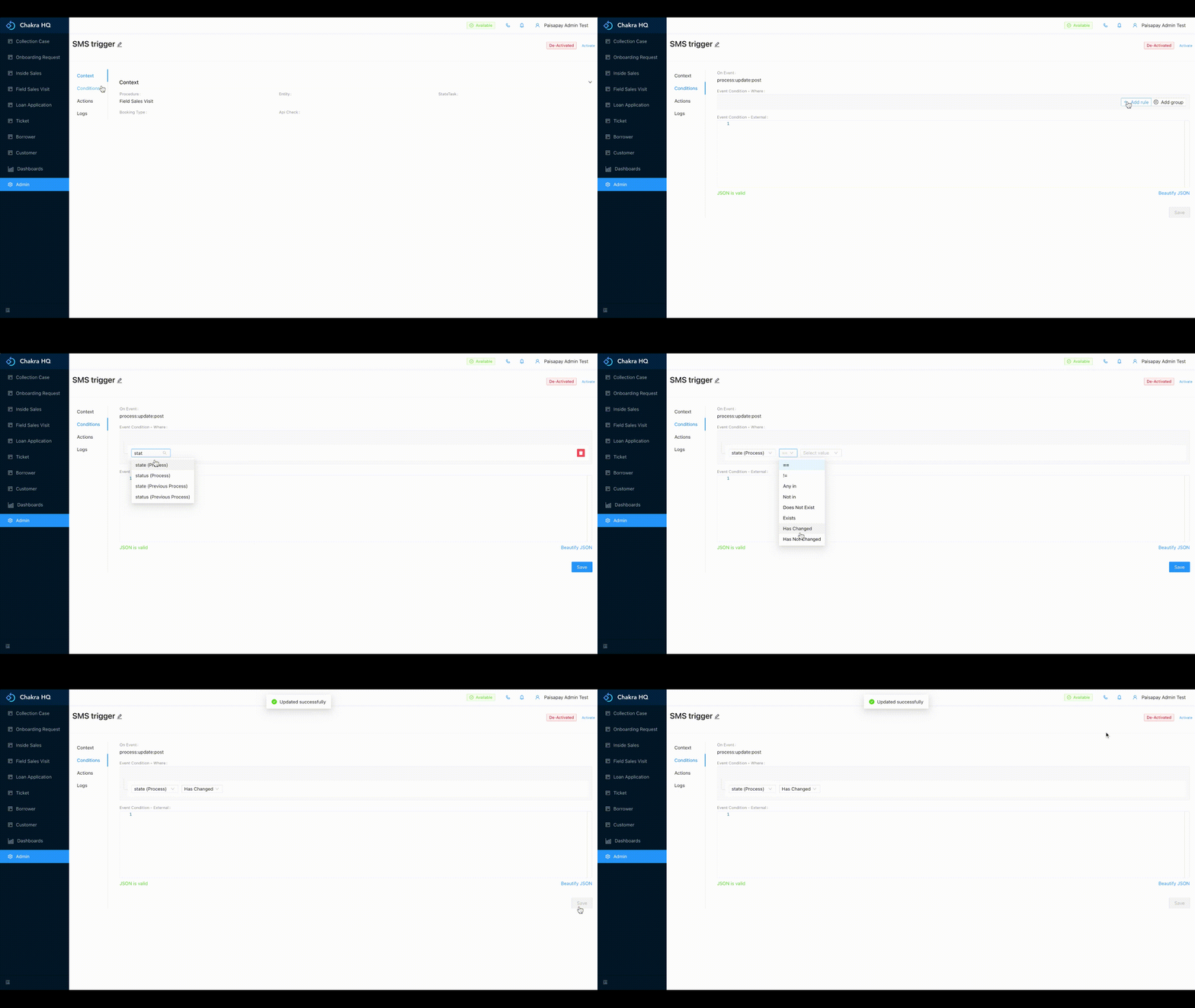
Suppose we want to send a message to the customer on their scheduled meeting, then we need to follow the below steps:
- Add the conditions as
State Has Changed: This means whenever the state change will happens there will be some respective rules which will be followed
- The rules can be added in the
Actionssection of the lifecycle rule - Here select the
Procedure,Phone number attribute,Email Attribute, and clickAdd Anotherin the rules section - Mention the order of the rule, the where condition (here the where condition will be
State == MEETING_COMPLETED)
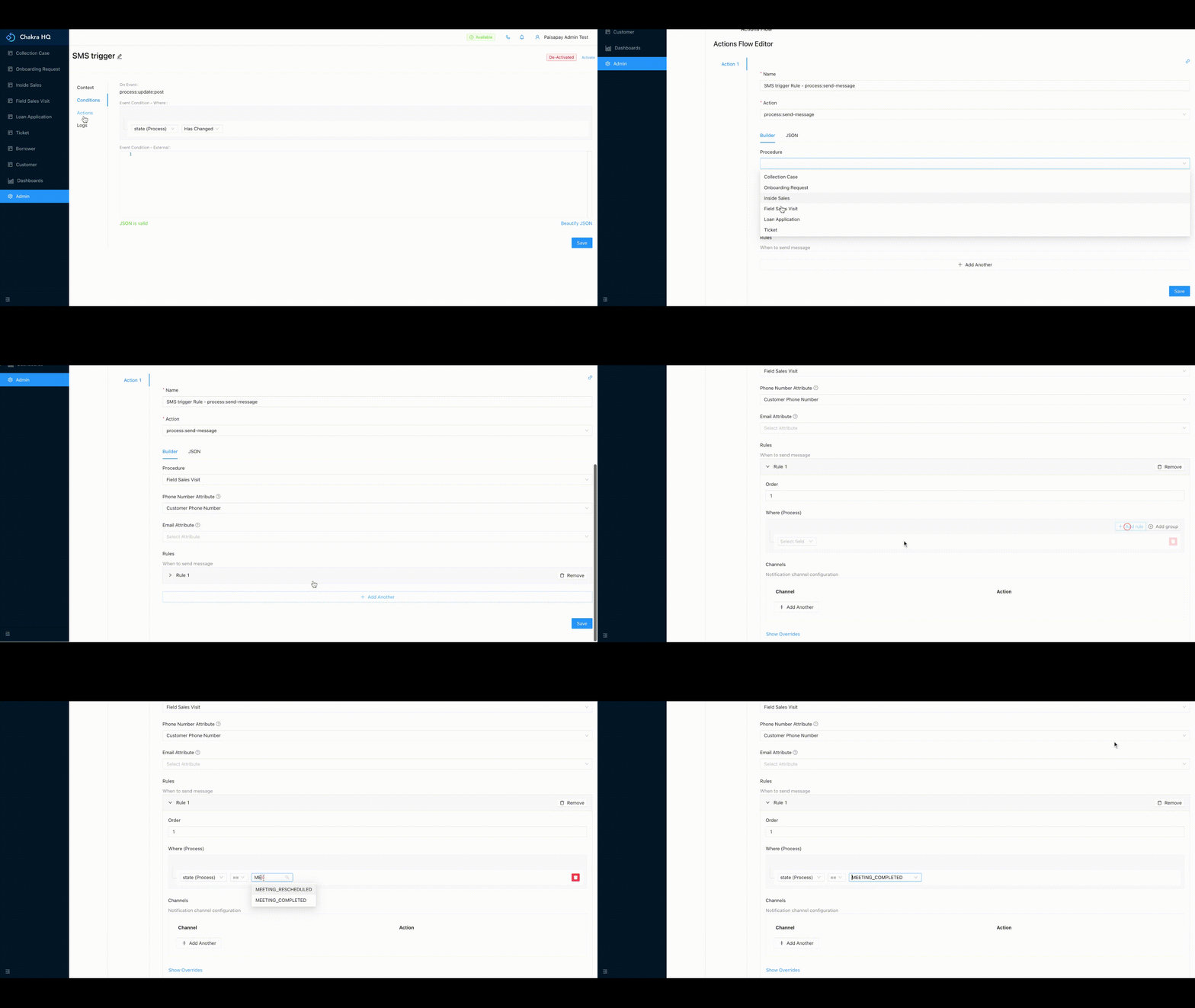
- Under Channels section select the
Channel : Whatsapp or SMS, select the plugin and then select the message template - Click on Save
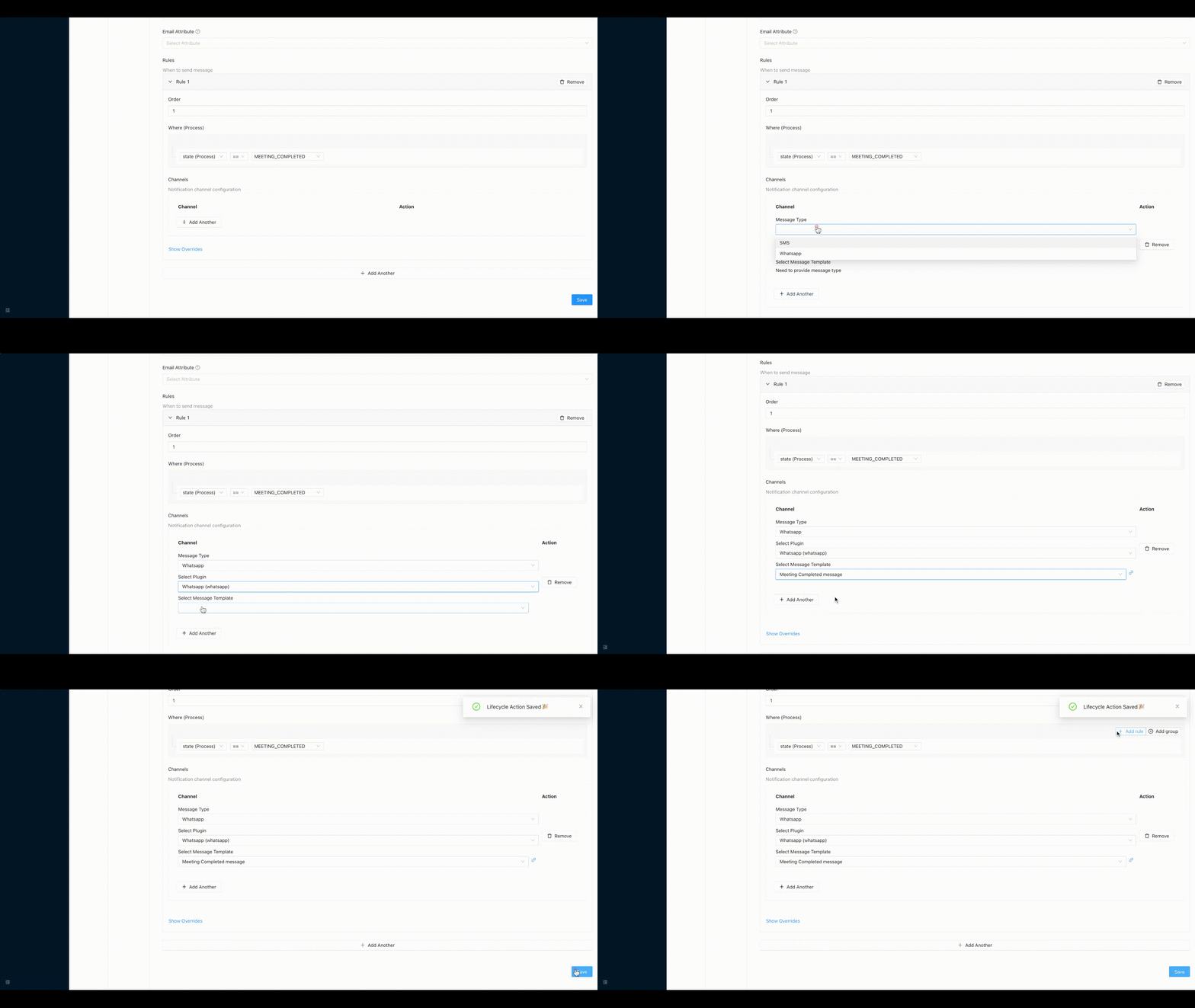
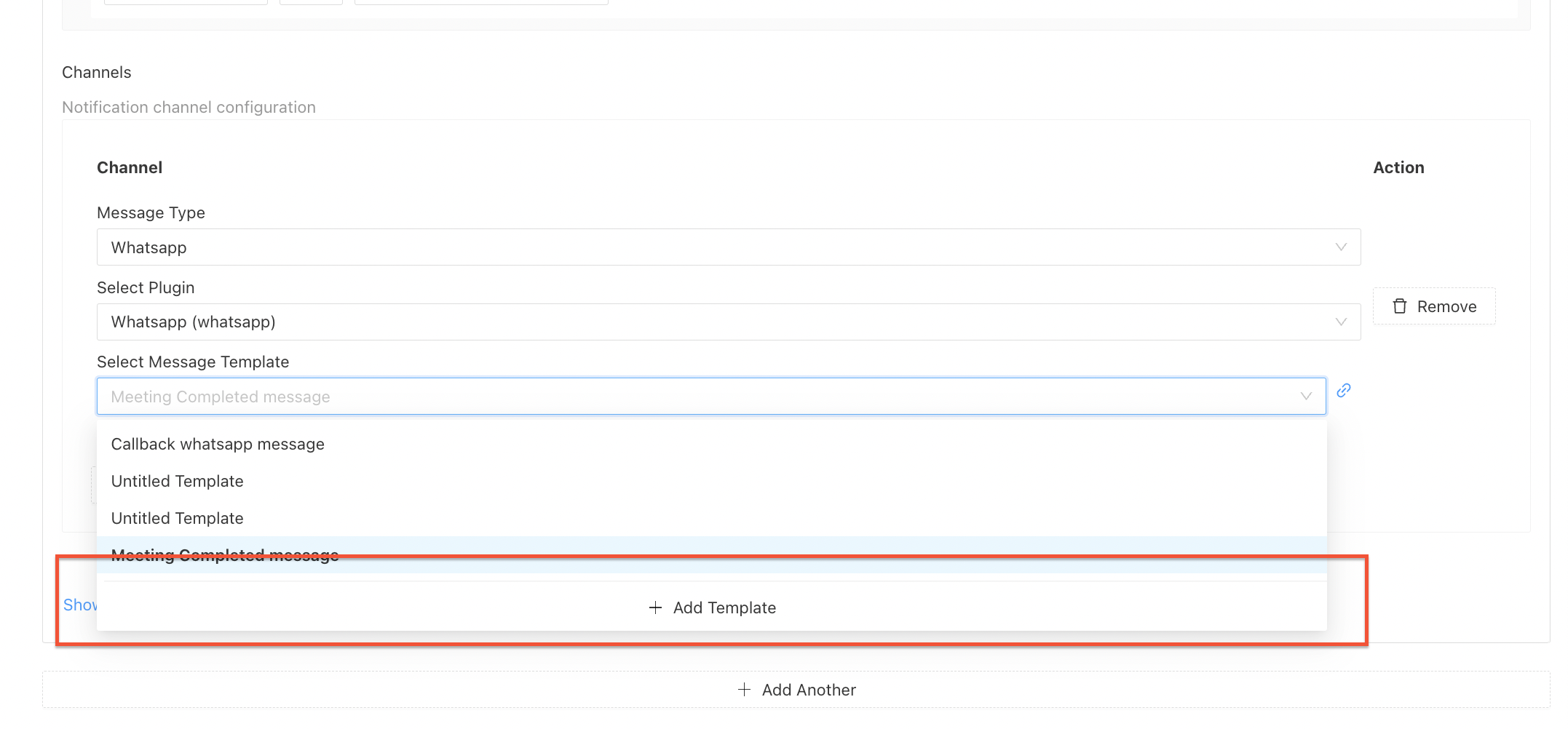
- To add the message template click on
Add Templateunder the select message template section
¶ Add Message Template
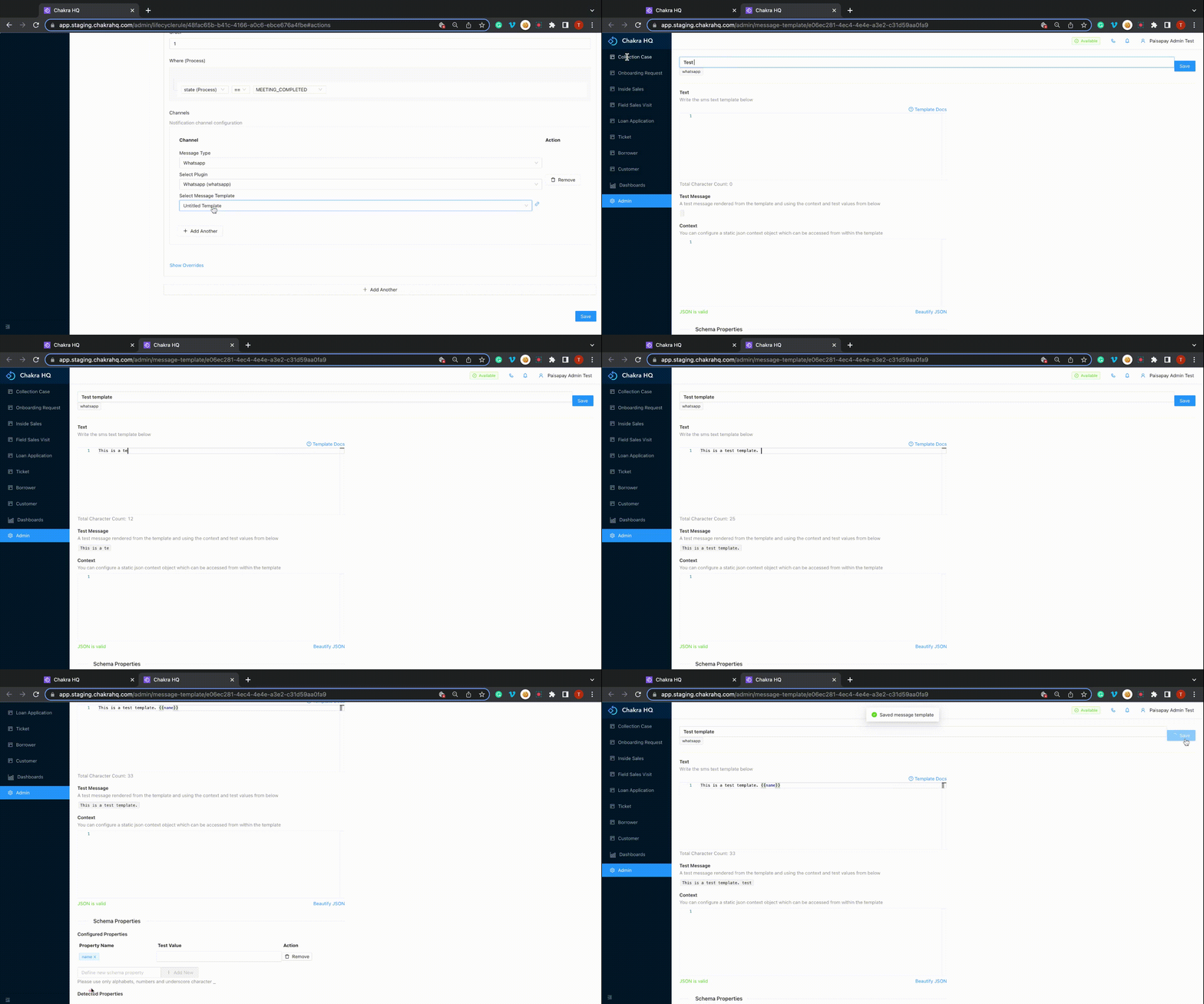
To add a new message template you need to follow the below steps:
- In the sms trigger lifecycle rule, go to the rules
- Under select the
message templatedropdown list click onAdd Template - A new tab will open where you can add the required template. Refer to the doc to know more about the format of the template used.
- You can test your added template attribute in the message template section by adding required
configured properties(bottom of the page) and adding the sample name to get the message output
¶ View message template
You can view the selected message templated for any rule by:
- In the sms trigger lifecycle rule, go to the rules
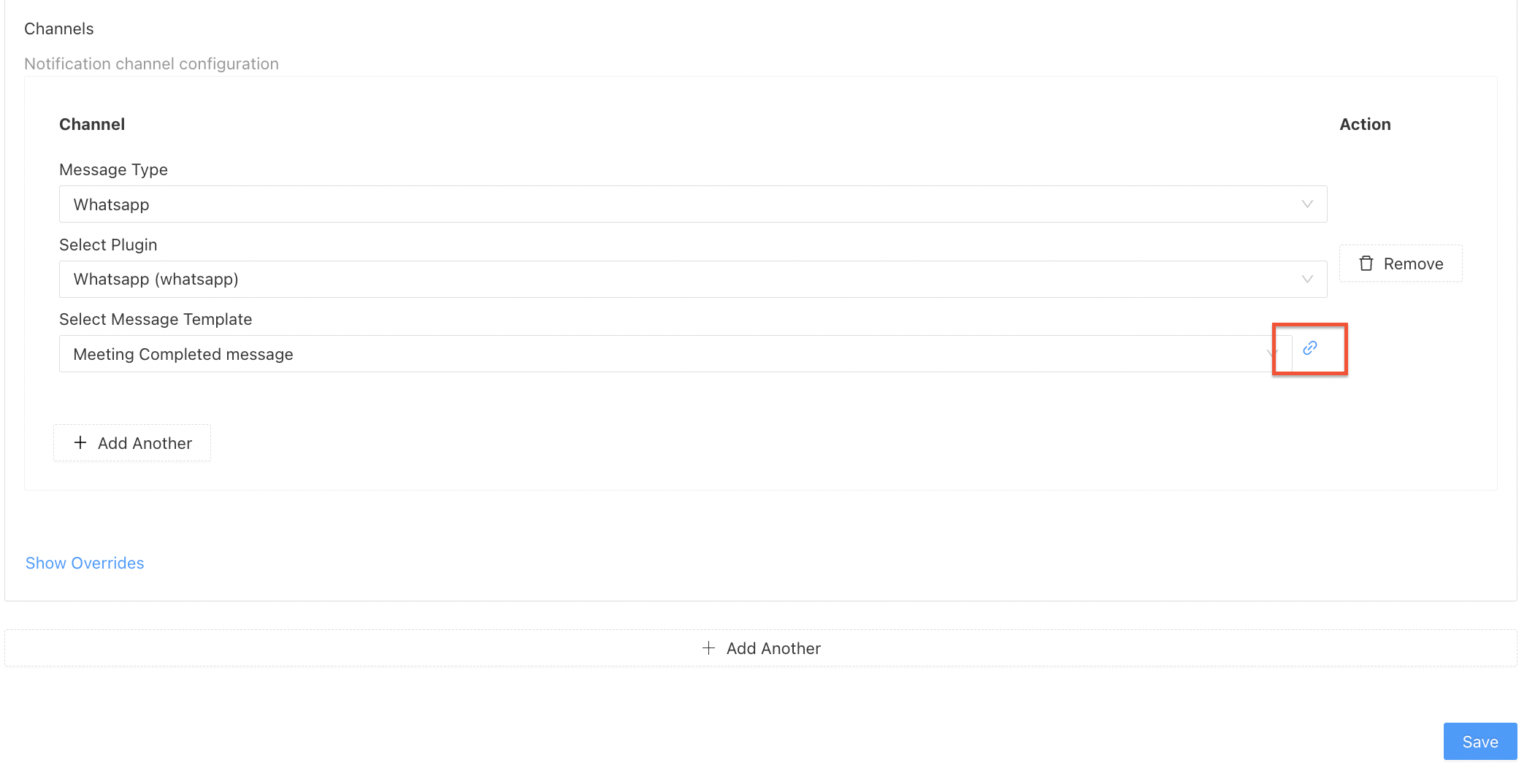
- Under select the message template section there will be the hyperlink present on the right side to the selected message template
- By clicking the hyperlink a new window will open and you can edit the template