¶ Customize Columns
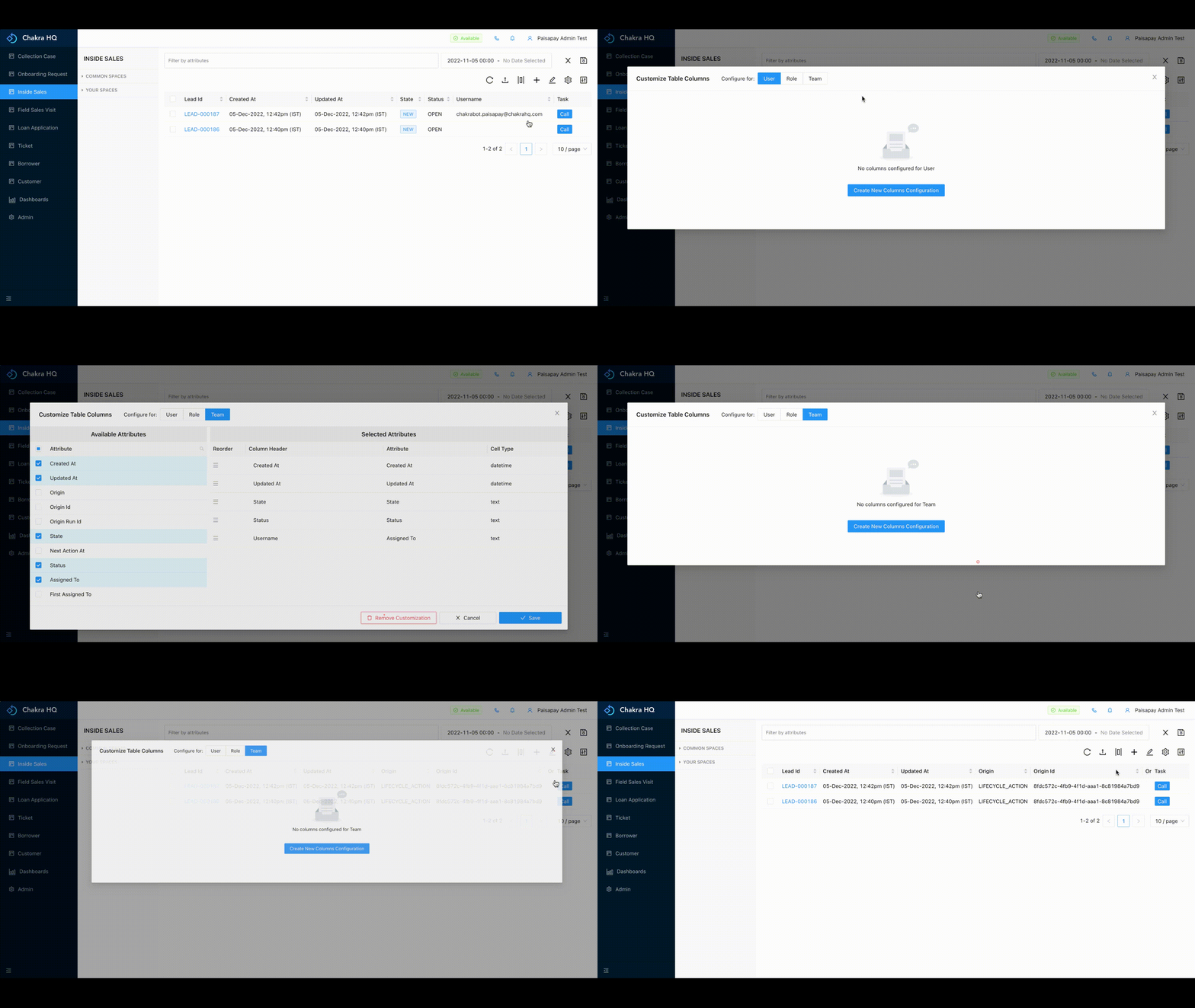
The process list is a table having n number of columns which give the data about the lead. These columns can be customize on chakra as per our requirement
¶ Create customisation
We can create a customized columns in the table by:
- Go to the process list of the procedure for which you want to customize the columns
- Select the Customize table columns option (|▯|)
- Select the Configure For option, the admin can configure for a
Useror for a particularRoleor for aTeamwhereas the user can only configure for themselves (i.e User).
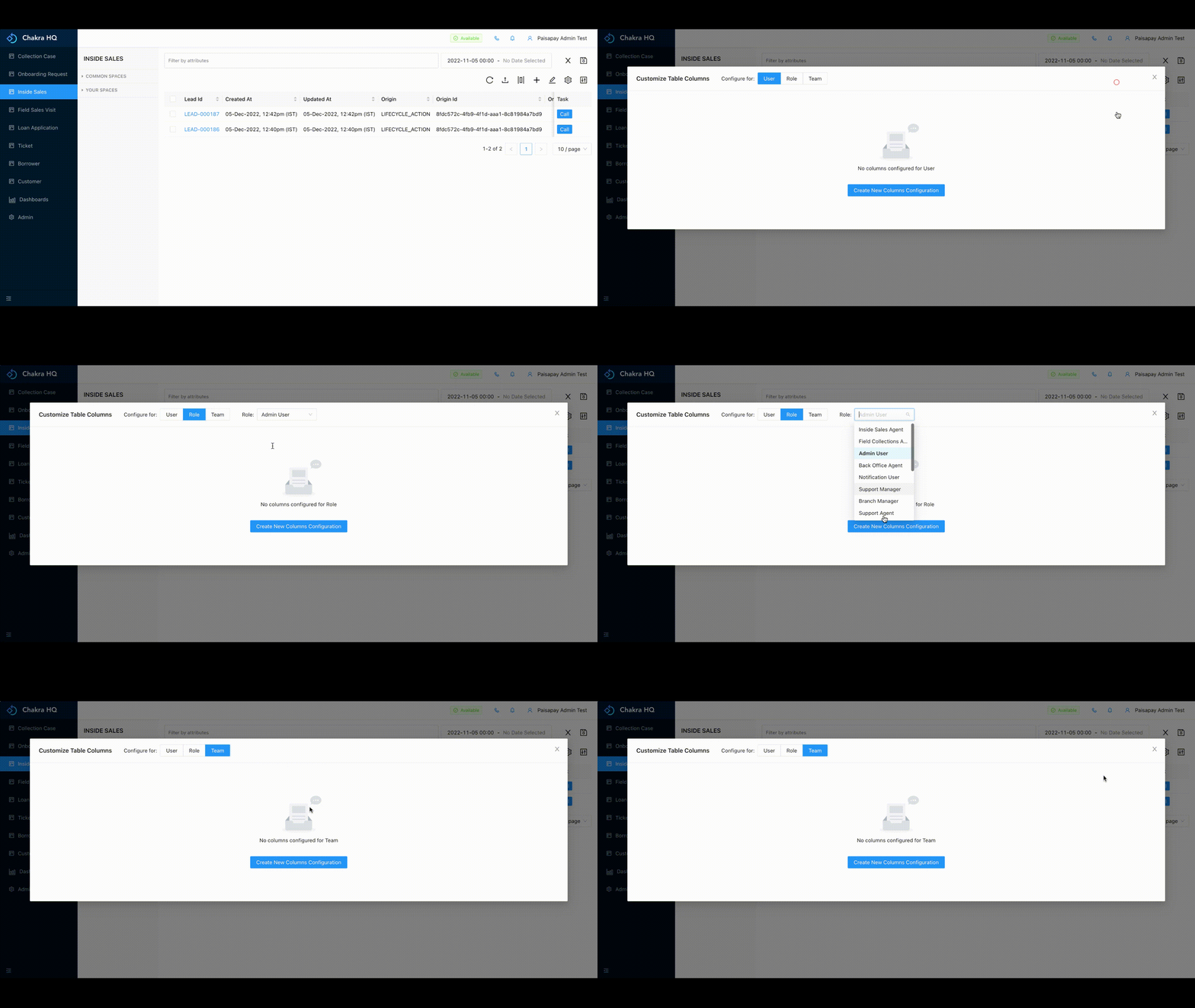
- Suppose we select Configure for
Team, then the columns added will be visible for the whole team. Go to Team and click onCreate New Columns Configurationsin theCustomize Table Layoutsection - Select the columns from the left
Available Attributeslist - The selected columns will be visible on the right in
Selected Attributeslist.
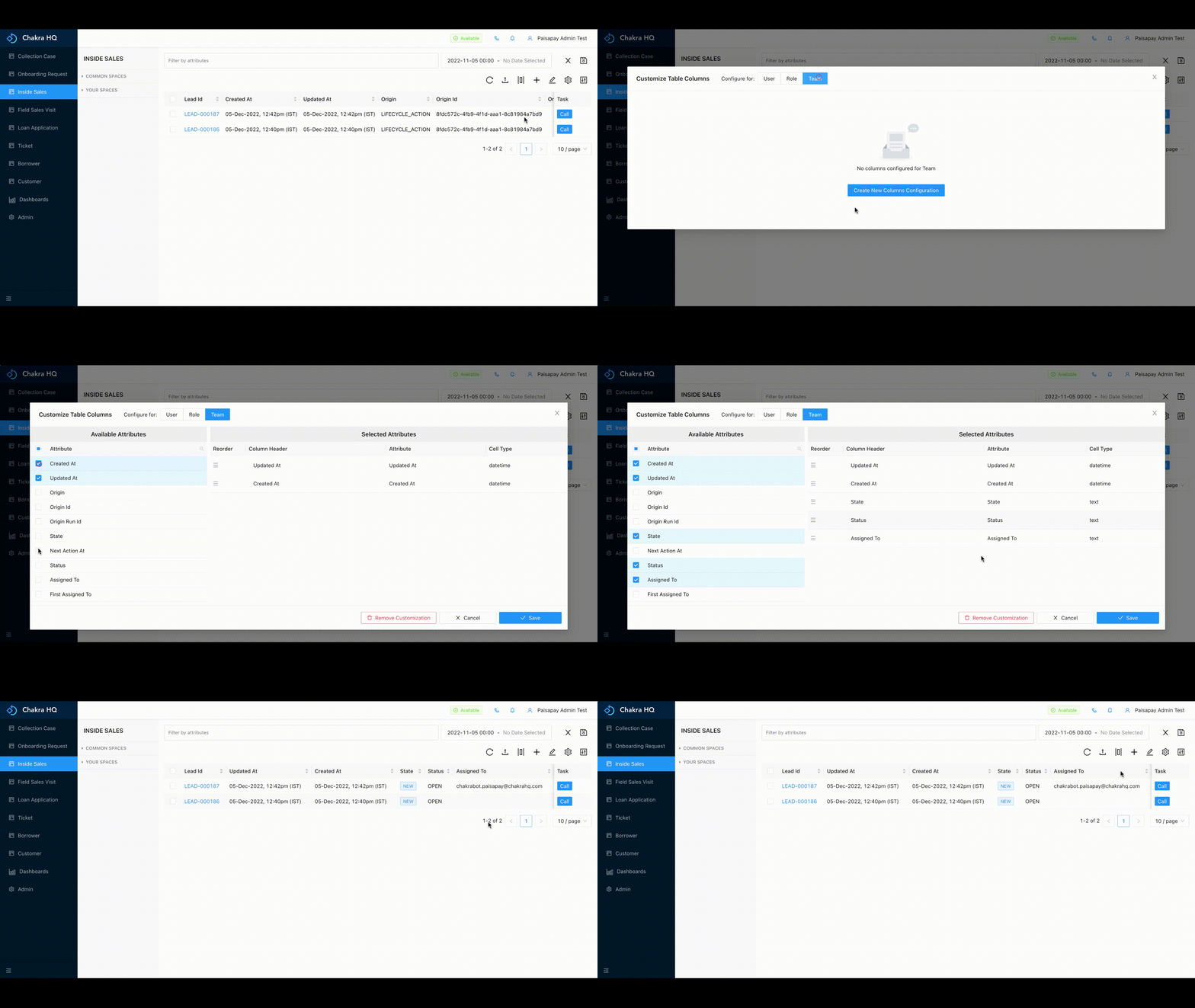
- We can sort the selected columns by reordering with the help of drag and drop feature
- If we want to change the
column headername, we can change it by clicking on the column name,entering the required column name and then enter - Click save to save the configuration changes
¶ Remove Customisation
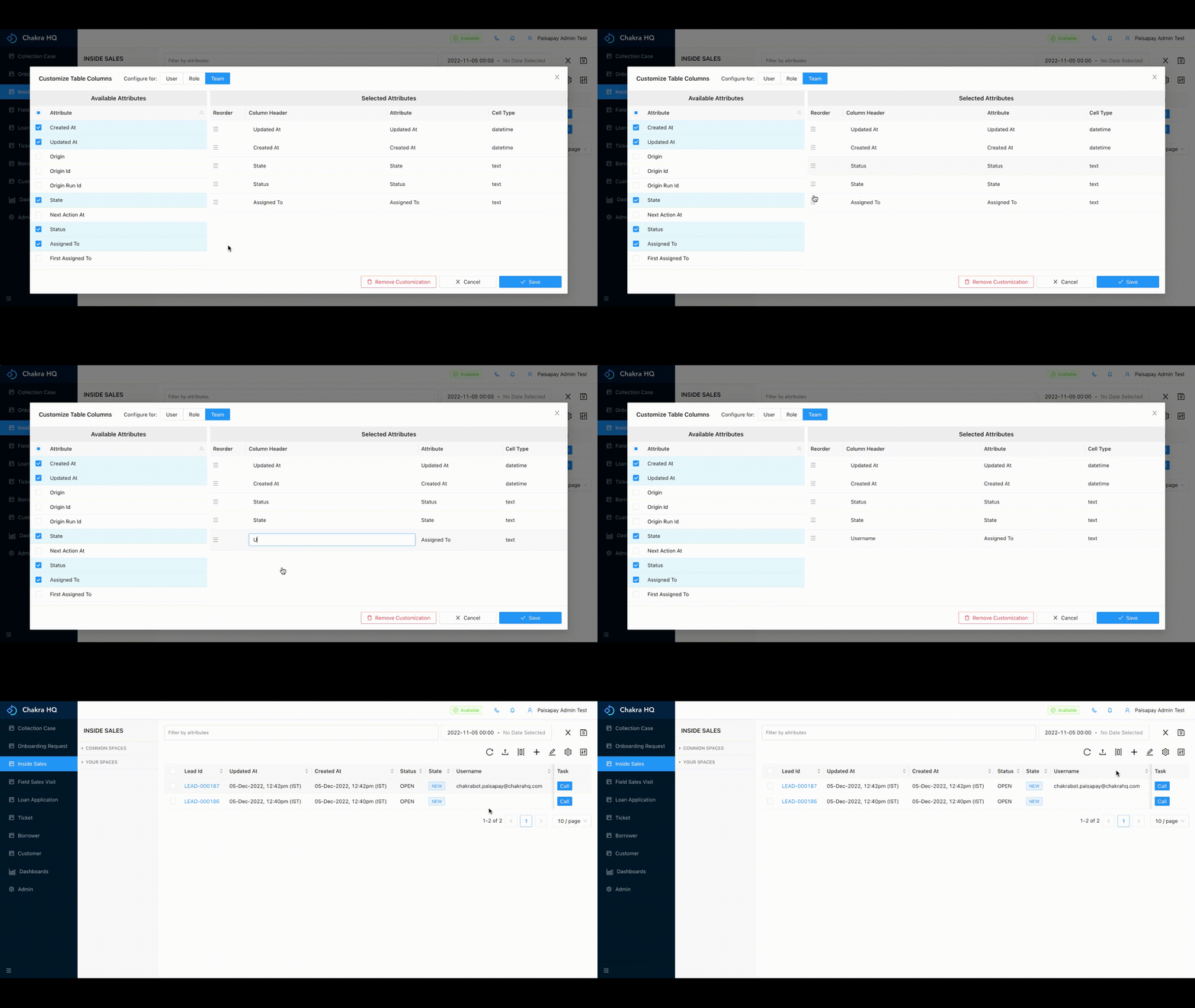
We can remove the added customisation in the table by:
- Go to the process list of the procedure for which you want to remove customization
- Select the Customize table columns option (|▯|)
- Select the Configure For option. Here select the option for which you want to remove the customisation
- Click on
Remove ConfigurationthenOKto remove the customisation - When we remove the configuration, all the columns will be visible in the process list table